Cage mode
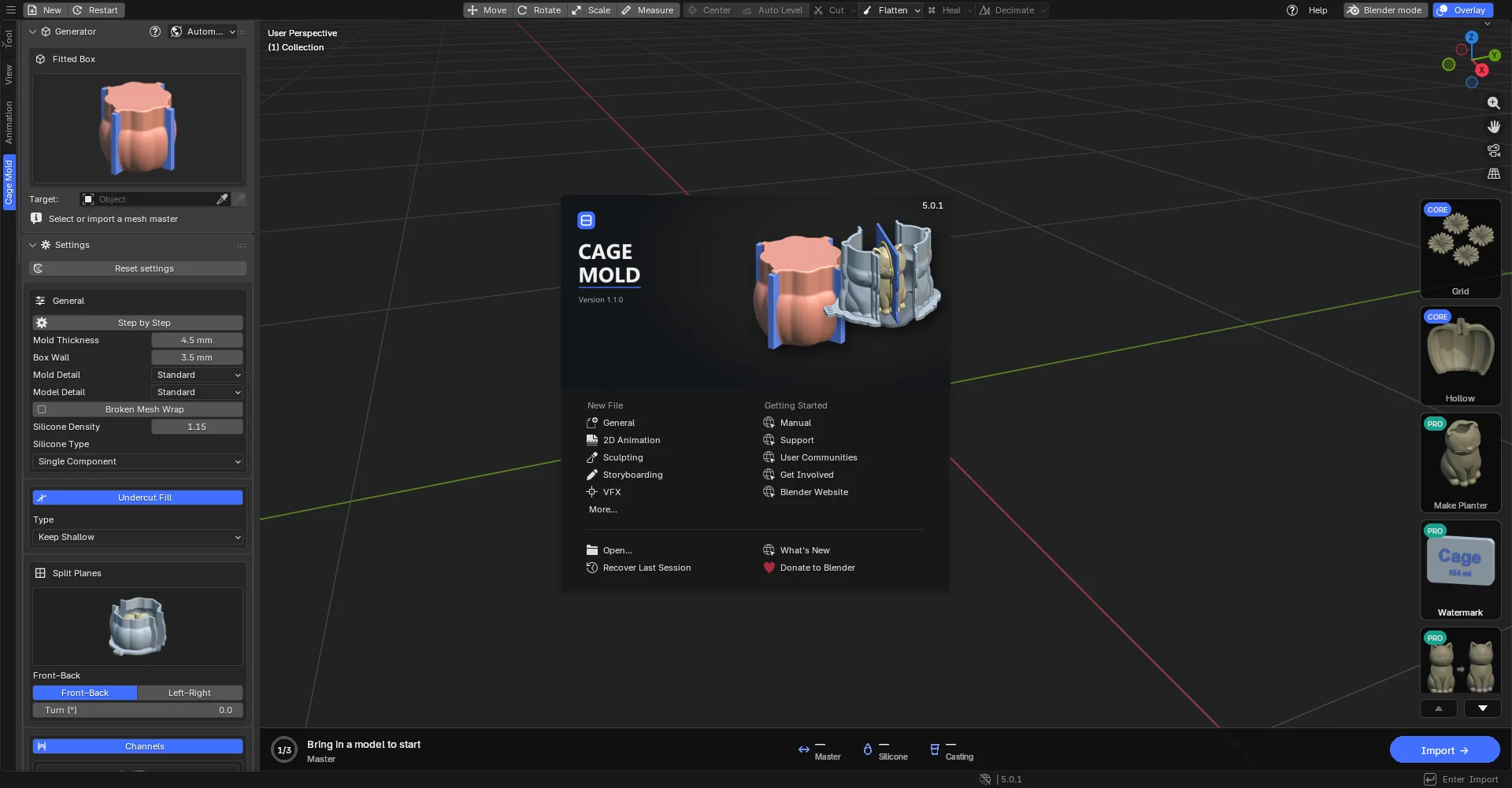
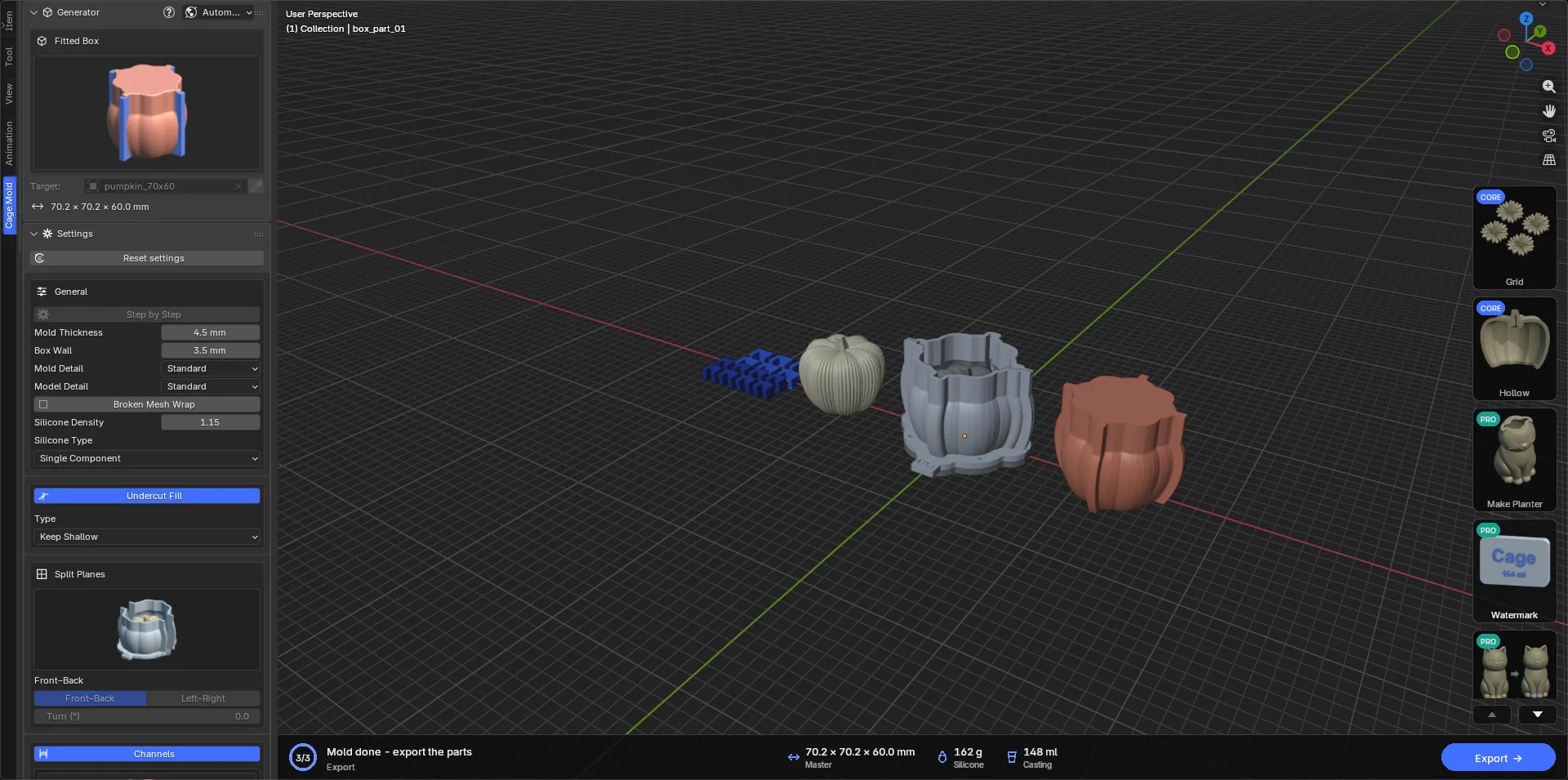
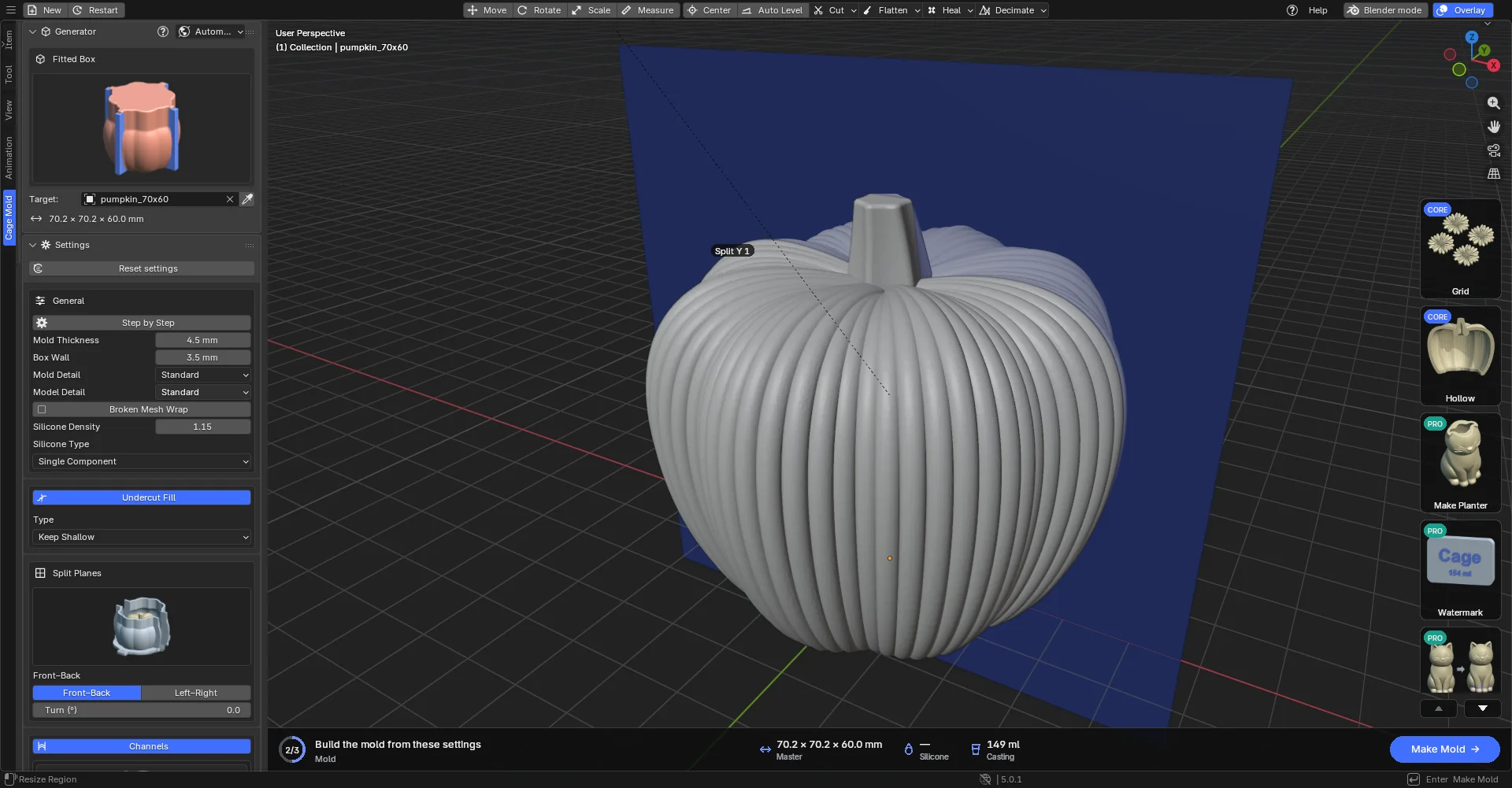
A view that hides Blender's menus, workspaces and other editors and works with Cage Mold alone: one 3D view, Cage Mold's tab on the left, its own top bar, a dark theme. Meant for users who do not know Blender, and entirely optional.
Installing and switching
- Install Cage mode
The Install Cage mode button under Edit › Preferences › Add-ons › Cage Mold installs an application template into Blender's user templates folder. Every Blender version (5.0, 5.2) installs its own. Switch to Cage mode and Create shortcut offer to install it first when it is missing. After an update of Cage Mold the installed template refreshes itself at the next start (top bar, splash); Cage mode's own settings are kept.
- Switching
The Cage mode button in the strip, or Switch to Cage mode in the preferences. With unsaved changes it asks first (Save / Don't Save / cancel); a saved file that was open is opened again in the new layout, so no work is lost. With Auto-Save Preferences on, changed preferences (Always show, say) are saved before the switch. The way back: the Blender mode button at the right of the top bar, or Back to normal Blender in the ≡ menu.
- Shortcut and automatic start
Create shortcut adds a "Cage Mold" shortcut to the desktop and the Start menu (~/Applications on macOS, the applications menu on Linux) that opens Blender straight in Cage mode; Remove shortcut deletes only those. With Start Blender in Cage mode ticked, every Blender started without a file switches to Cage mode by itself (a .blend opened by double-click opens as usual). The setting is made in normal Blender; in Cage mode it shows read-only.
The top bar
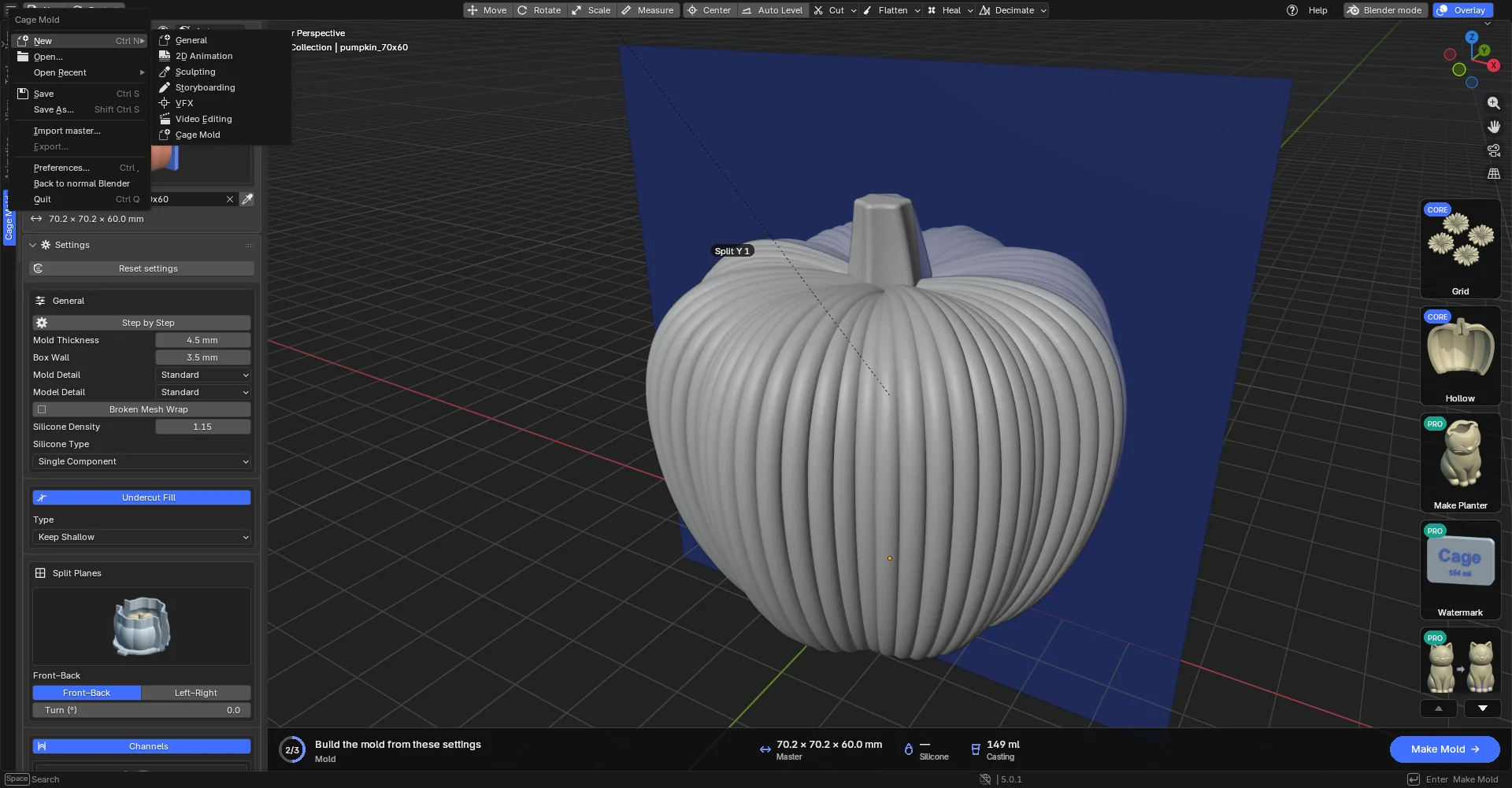
Left to right: the ≡ menu (New, Open…, Open Recent, Save, Save As…, Import master…, Export…, Preferences…, Back to normal Blender, Quit), New and Restart; in the middle Blender's Move, Rotate, Scale, Measure tools (highlighted while active) and Center, Auto Level, Cut, Flatten, Heal, Decimate (each with its popover); on the right Help, Blender mode and the Overlay switch that hides the view's drawings. Blender's shortcuts (Ctrl+S, Ctrl+O, Ctrl+Z, G, R, S) work as ever. The strip over the view is not drawn here; the tools are in the top bar. Cage mode opens with Move chosen: a click on a model shows its move arrows, a click on empty space clears them.
On the right stand Help (the Help menu, chapter 10; red when an answer is new), Blender mode (back to normal Blender in one click) and Overlay.
Cage mode runs Cage Mold alone with Blender's default keymap; your other add-ons, keymap edits and theme come back in normal Blender. Your own Blender settings (userpref.blend, startup.blend) are not written by installing, switching or working in Cage mode.