Help and support
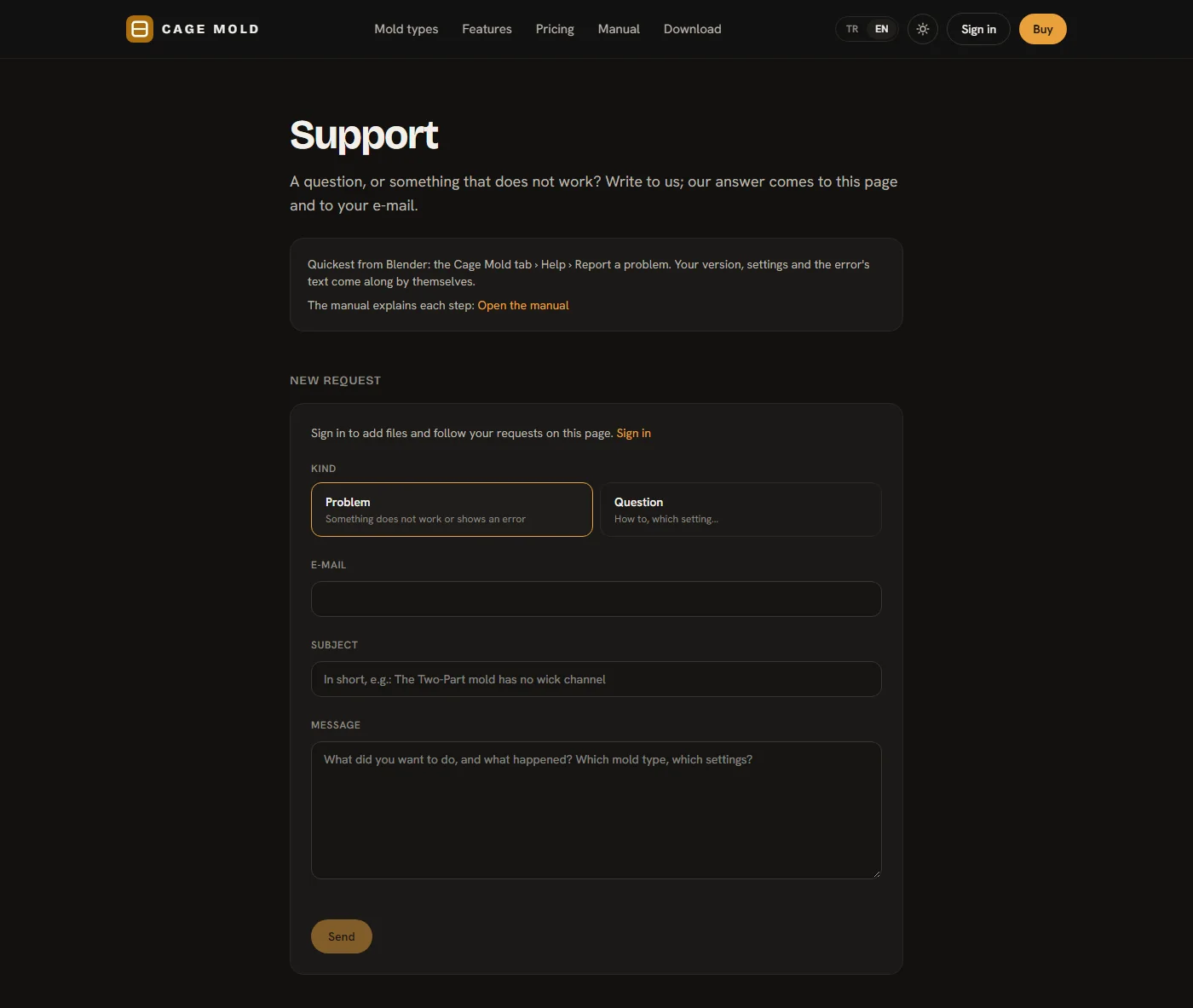
With a question, or something that does not work, you can write without leaving Cage Mold. Cage Mold's version, your settings and the error's text go along by themselves; the answer comes to Cage Mold and to your e-mail.
The Help menu
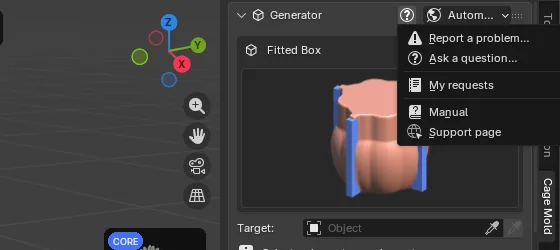
The ? button in the Generator header opens the menu (Help in Cage mode's top bar). When an answer is new, the button is red and shows the number of answers.
- Report a problem…: report something that does not work.
- Ask a question…: ask how to do something.
- My requests: the requests you sent, their state and new answers.
- Manual: this manual. Support page: the support page on the website.
When you are not signed in, Report a problem, Ask a question and My requests open the support page on the website; you can write there too, and the answer comes to your e-mail.
Reporting a problem
- Open the window
Choose Help › Report a problem…. When a build failed there is a shorter way: the action card shows the error in red with a Report this error button beside it; pressing it fills the subject and the error's details by itself, and Enter sends.
- Write
Pick Problem or Question, write a short Subject and, in Message, what you wanted to do and what happened (which mold type, which setting).
- Check what goes with it
The Sent with it box lists everything that goes with the request before it is sent: Cage Mold's version, your package, Blender's version and the system; the mold type and every setting; the last error and its details, if any; the model's name and size. No file path of your computer is sent (only the scene file's name). Picture of the view (ticked) adds a picture of the 3D view. The model (not ticked) sends your model too; its size is written beside it. The model goes only if you tick it.
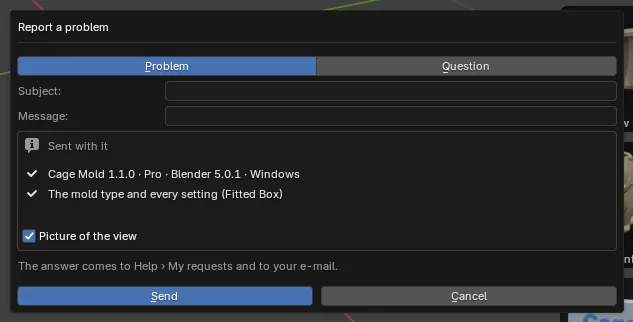
The Report a problem window and its Sent with it list. - Send
Press Send. The request goes in the background; Blender does not wait. Shortly a window gives the request's number ("Your request is #1042").
Answers
The answer comes to your e-mail and to Blender: Blender looks for new answers shortly after it starts and every half hour; with one, the ? button turns red. Help › My requests lists your requests with their state (Waiting for support, Answered, Closed); a click opens the conversation, where you can answer or close it with Solved, close it. A closed request opens again when you write. The same requests show on the website's support page and on My account.